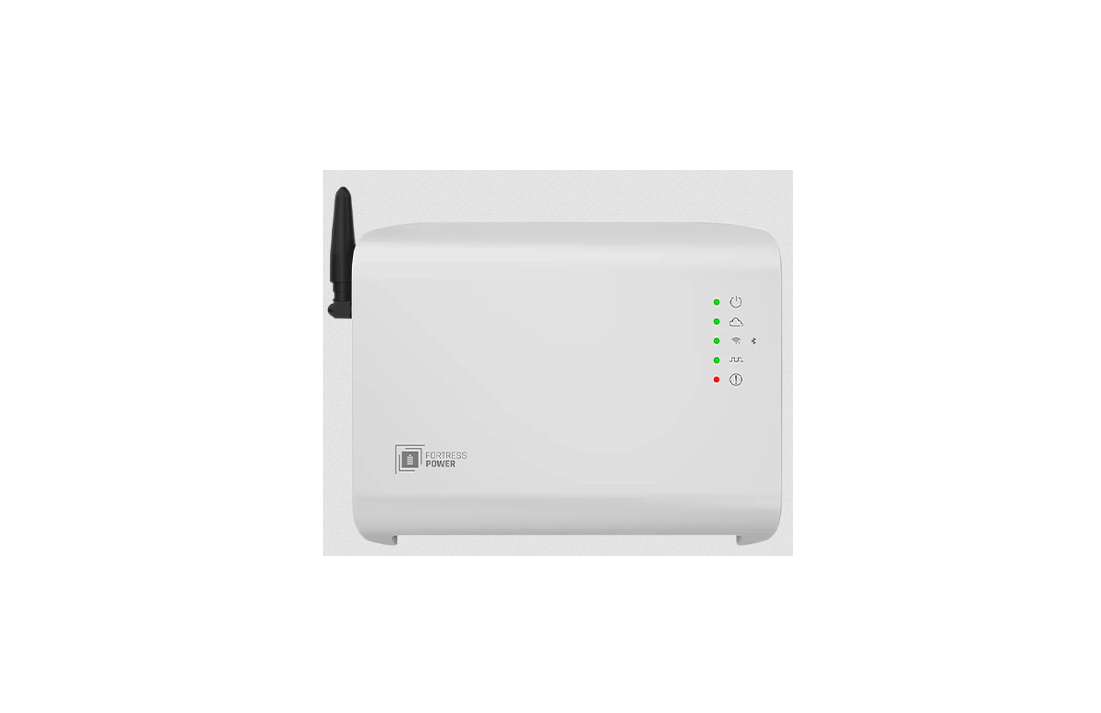
Fortress Power Guardian Box Guardian WiFi device User Manual
 Reconnect your Guardian device using the new Fortress Power Owner App.
BEFORE YOU BEGIN
- WI-FI DETAILS
Have your Wi-Fi network name and password available. - OWNER APP
Download the new Fortress Power Owner App. - ACCOUNT ACCESS
Make sure your contact information is connected to your account. If you cannot log in, submit a service ticket at Fortress Power Support | Get Help with Your Energy System or contact our support team at (877) 497-6937. When calling, have your Guardian serial number ready.
https://www.fortresspower.com/support/ - STAY NEARBY
Stand near the Guardian device while completing these steps.

PREFER A VIDEO WALKTHROUGH?
Scan to watch our step-by-step Wi-Fi setup tutorial on YouTube.
https://www.youtube.com/shorts/CtxC8cmozos
OPEN SETTINGS
After logging in to the Owner App, tap the Settings icon (the cog) at the bottom of the screen.

CONNECT LOCALLY
On the Settings page, select the Local tab, then tap Connect.

SELECT YOUR GUARDIAN
Choose the Guardian serial number that appears on the screen. If you do not see the device, move closer to it and confirm the Guardian has power.

TIP: If the Guardian does not appear, verify that it is powered on and remain close to the device.
WAIT FOR THE CONNECTION
The app will display “Device connection in progress” while it connects. This may take up to one minute.

TIP: Do not close the app while the Bluetooth connection is in progress.
CHOOSE THE DEVICE TYPE
Select the type of Fortress Power device you are connecting from the options shown on the screen.

GET A SECURITY TOKEN
Follow the on-screen instructions to generate a security token. Press the SET button on the Guardian for approximately two seconds, then release it.

OPEN NETWORK SETTINGS
After the Bluetooth connection is confirmed at the top of the screen, tap Network Settings.

SEARCH FOR A NETWORK
The app will show the current network status and begin searching for available Wi-Fi networks.

REFRESH IF NEEDED
If your Wi-Fi network does not appear, refresh the search. The Guardian requires a strong signal. Depending on the installation location, a Wi-Fi extender may be needed near the system.

TIP: A weak signal can prevent the network from appearing. A Wi-Fi extender may be required near the system.
SELECT YOUR NETWORK
Tap the Wi-Fi network you want the Guardian to connect to.

ENTER THE PASSWORD
Enter the password for the selected Wi-Fi network, then tap Continue.

TIP: Wi-Fi passwords are case-sensitive. Confirm uppercase letters, numbers, and special characters.
CONFIRM THE CONNECTION
A green check mark will appear when the Guardian successfully connects to the Wi-Fi network.

CONNECTION COMPLETE
Success! Your Guardian is now connected and ready for remote monitoring.

Need additional support? Our team is here to help.
TECH SUPPORT (877) 497-6937
SUPPORT PORTAL fortresspower.com/support