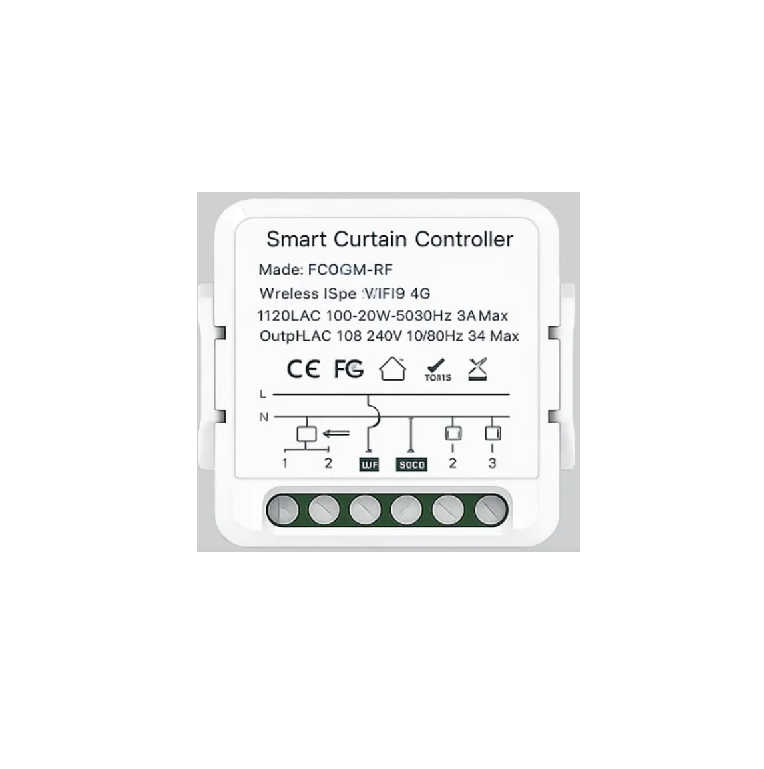
WiFi+RF433 Smart Switch use manual
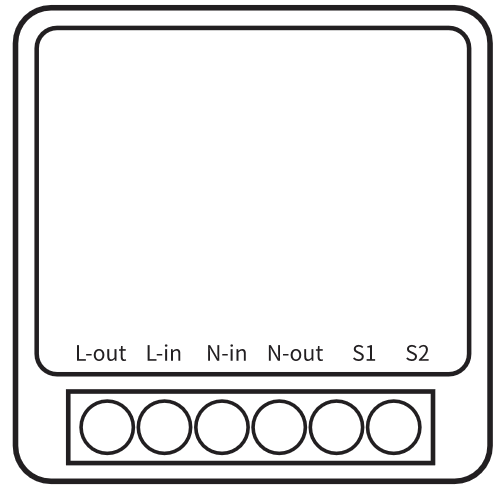
Parameter:
Input: AC 100-240V 50/60Hz 10A/16A Max
Output: AC 100-240V 50/60Hz 10A/16A Max
Wi-Fi: IEEE 802.11 b/g/n 2.4GHz
RF:433Mhz
Material: PC V0
Size: 41x20x41mm
Checklist before using the device
- Your smart phone or tablet has connected to a 2.4G WiFi with internete.
- You have the correct WiFi password.e
- Your smart phone or tablet must haveaccess to APP Store, Google Play.
- Make sure that your router is MAC-open
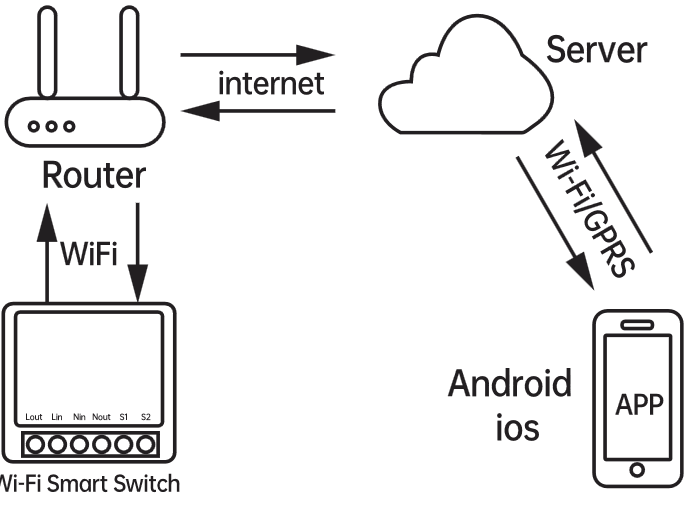
User Guide
1. Install the “Smart Life”or”Tuya Smart”APP) You may find the “Smart Life”or”Tuya Smart” app onmobileApp store, Google Play, orScan the QR code belowandinstall it;
2. Register an “Smart Life”or“Tuya Smart” account.
3. If you have “Smart Life” or”Tuya Smart” account, justlog in.

https://e.tuya.com/smartlife/

https://smartapp.tuya.com/tuyasmart/
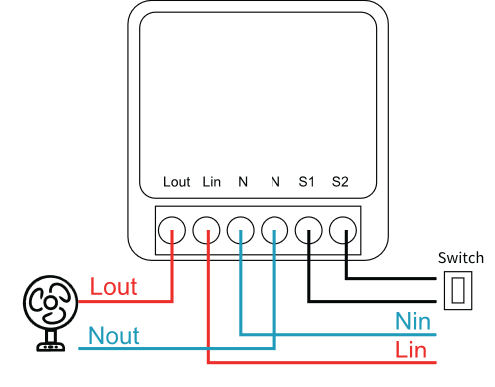
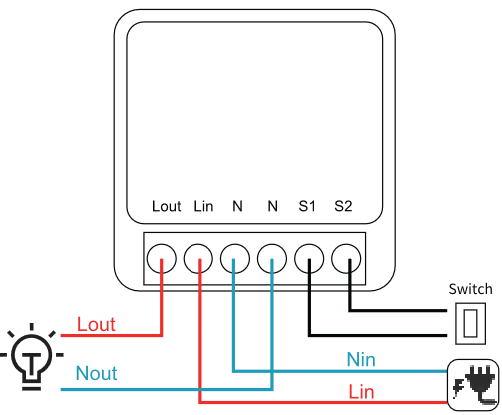
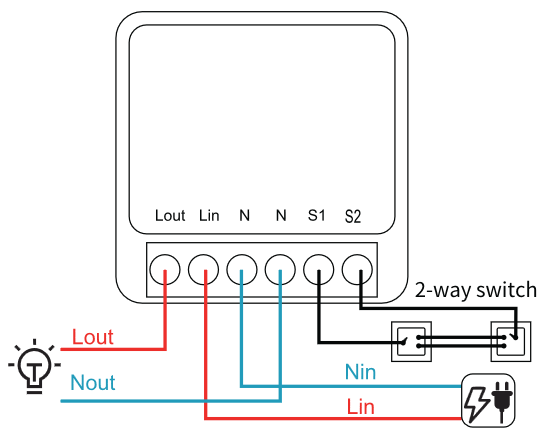
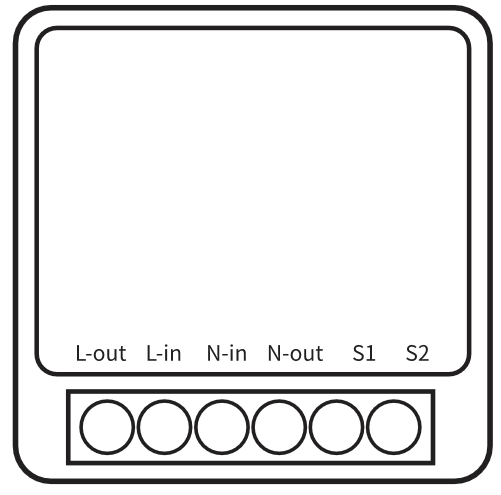
4. Please wire the device accordin to the marking on the cover,
ON/OFF operating principle:
The connected appliances work/stop through livewire power on/off, The device must be powered kL and N
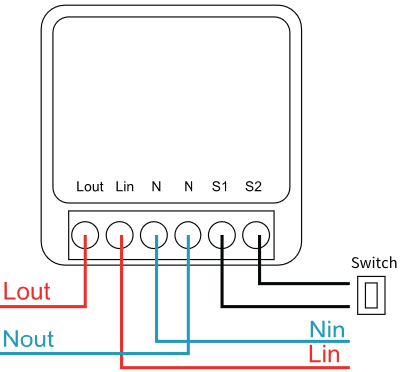
Warning: S1 and S2 can only be connected to the two ends of the wswitch,and cannot be connected to strong power such as zero-fire li
4.1The wiring diagram to connect the electrical applian
4.2 The wiring diagram to connect the light.The wiring for 1 way control
The wiring for 2 way control
5. Power on after completion ofwiring, and the device isturned on by default, Pressand hold the button for about5s seconds until the WiFilblue LED blinks fast.
6. Enter the App, tap “+”in theupper right of the page toenter network connection- page.
7. Please make sure the device’s indicator light rapidlyflashes (2 times per second)tap to go on to the next step.
8. Input your WiFi & password.
9. Name your device.
10. When the WiFi LED is onthe device is online. Start tocontrol now!
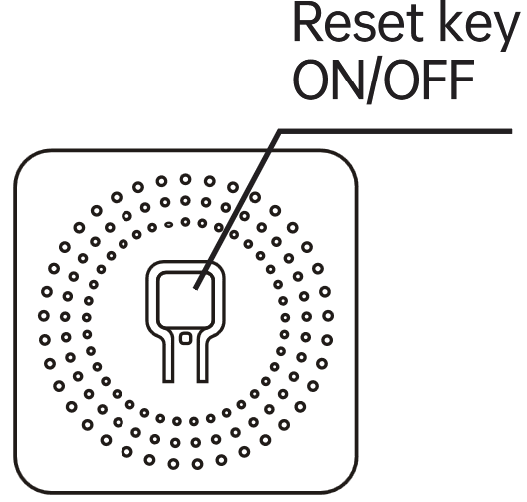
Reset key:
- The button acts as a standard switch; pressing it toggles the device on and off.
- Press and hold the button for five seconds to enter the device’s network reconfiguration mode.
RF433 wireless remote control switch matching method
(After successful WiFi pairing)
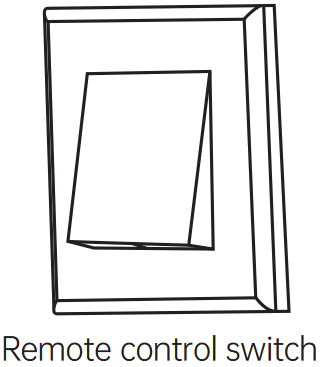
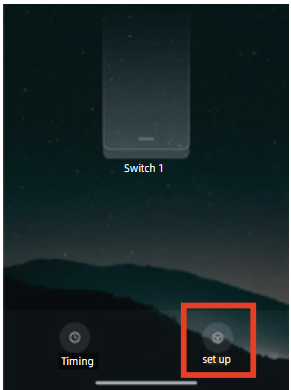
- Open the Doodle App. Select “Settings”;
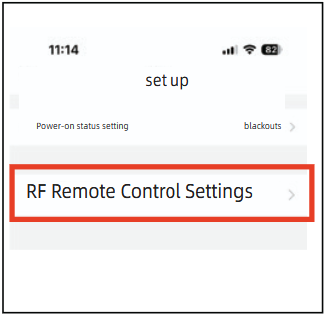
- Select again “RF Remote Control Settings”.
- Click “Add”.
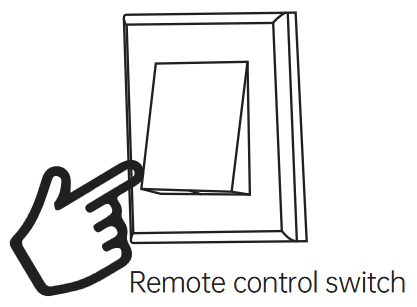
- Then press the wireless remote control switch within 10 seconds for code pairing operation;
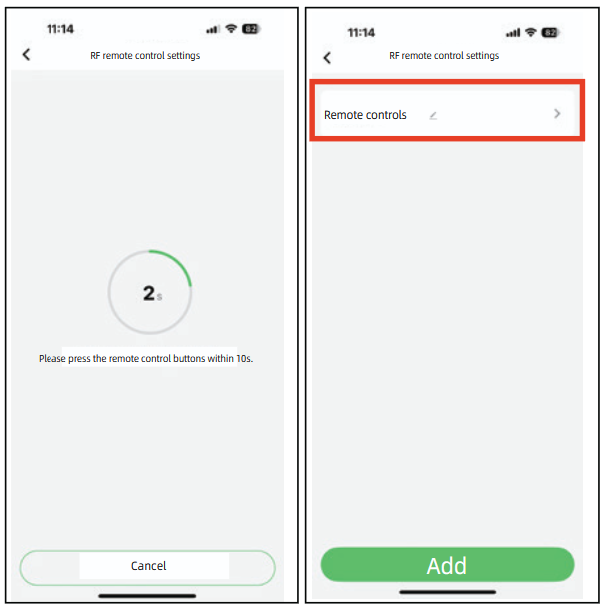
After successful pairing, the RF remote can control the on/off switch via RF433.