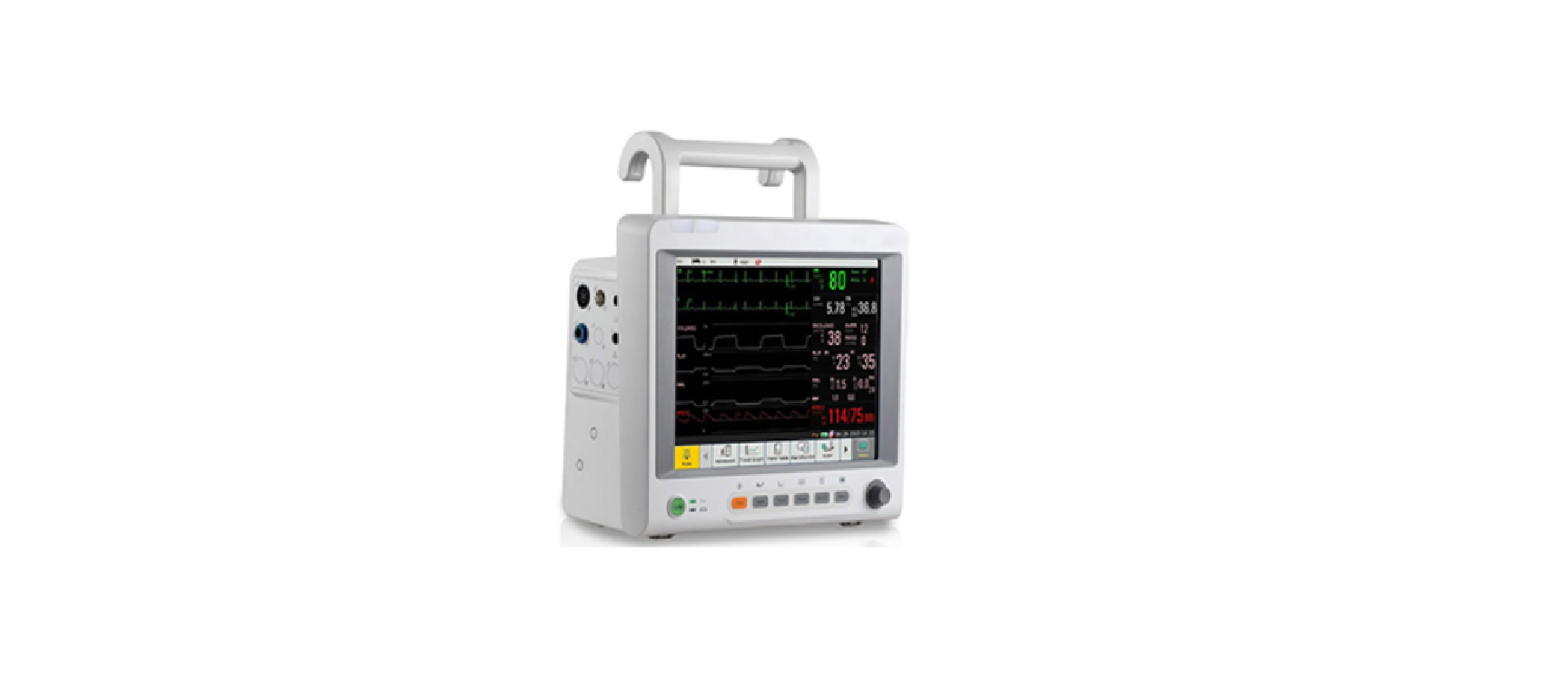
CardioTech GT-12 Patient Monitor Quick start guide
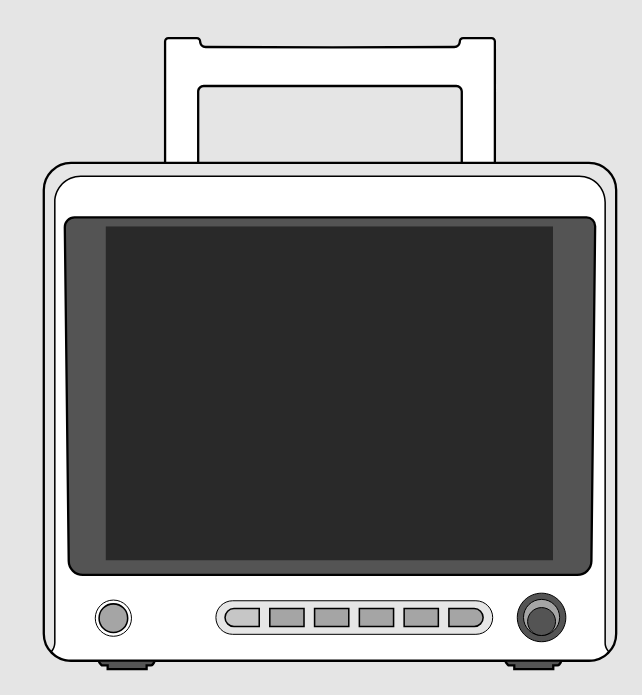
CardioTech GT-12
Contact Us:
info@cardiacdirect.com
888-354-2968
Basic Setup
Installing The Battery
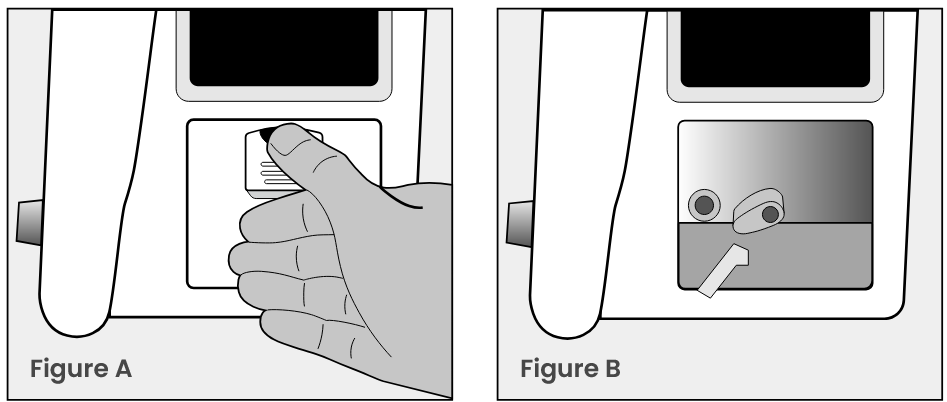
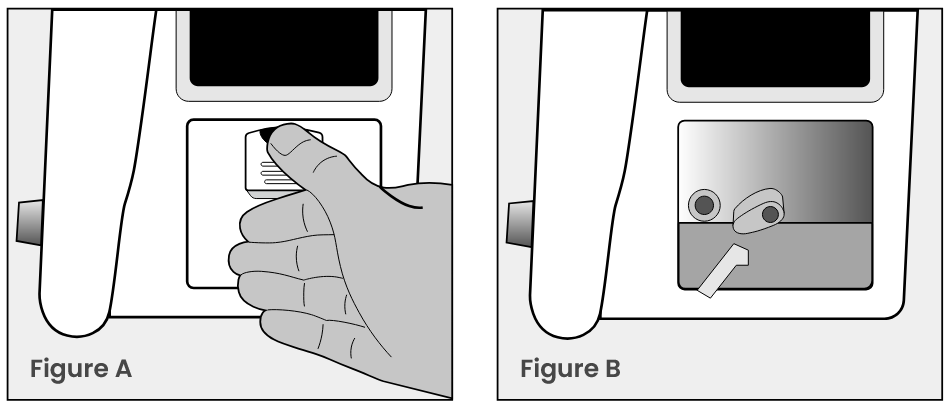
- Turn the GT-12 to the right to reveal the battery compartment, located on the right side of the unit. Slide the latch down to open the battery compartment cover. (Figure A)
- Before inserting the battery, make sure the battery connector is on the left.
- Before inserting the battery, make sure the battery connector is on the left.
- Replace the battery compartment door.
Loading Paper Into The Printer
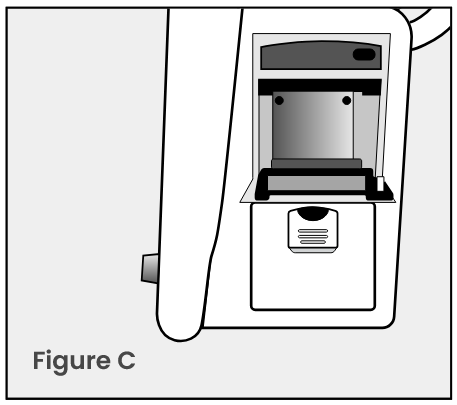
- Locate the printer above the battery compartment on the right side of the unit. Pull down to open the printer door. (Figure C)
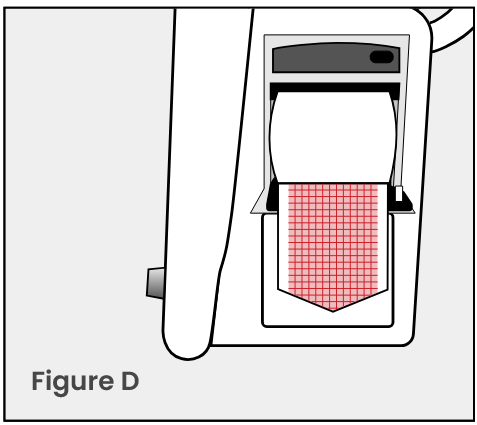
- Make sure the grid side of the paper is facing up. (Figure D)
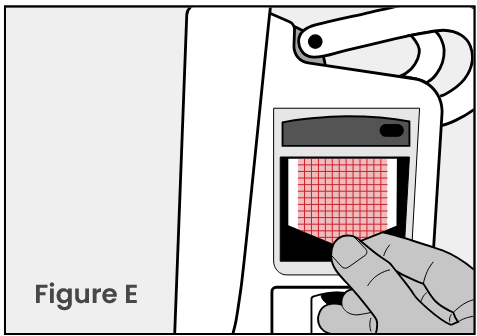
- Insert the roll into the paper compartment, then close the printer door, with the first page of paper hanging over the printer. The printer is ready to be used. (Figure E)
Powering On The CardioTech GT-12
- Plug one end of the AC Power Cable into the power supply socket, located on the backside of the GT-12. Plug the other end into an AC Wall Outlet. (Figure F)
- Turn on the GT-12 by pressing the green button on the front of the unit. (Figure G)
- When the GT-12 turns on, enter the password “ABC” to access the interface.
How to Print Live Parameter Readings
- Click the ‘Menu’ button1.
- Select ‘System Setup’, then select ‘Recorder Setup’2.
- Select a parameter for waveform 1, 2, and 3.3.
- Press the ‘record’ button on the front of the unit to print out the desired waveforms.
How to Print Review Trend Graphs/Tables
- Click the ‘Menu’ button
- Select ‘Review’, then choose ‘Trend Graph’ or ‘Trend Table’
- From review, you may also print Alarm Review, Patient History, NIBP Review and ARR Review.
- Choose the desired scale/interval, then press ‘Record’.
How to Change the Temperature to Fahrenheit
- Click the ‘Menu’ button
- Select ‘System Setup’
- Select ‘Temp Setup’
- Change the temperature setting from °C to °F
How to Change the Electrode Type from 5-Lead to 3-Lead
- Touch/Click the ECG Heart Rate Parameter Box
- Under electrode type, select ‘5-lead’ and change to ‘3-lead’
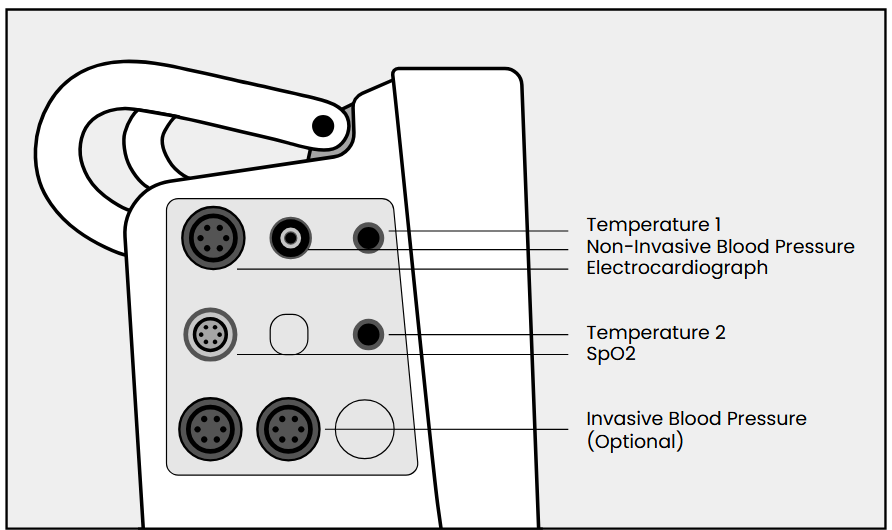
Connecting Accessories
Standard:
- 3/5-Lead ECG
- NIBP
- SpO2
- 2 TEMP
Optional:
- Dual IBP
- Co2
BASIC SETUP COMPLETE
Continue to Next Pages for FAQ & Troubleshoot Issues
FAQ
How to Fix the Recorder Printing on the GT-12
- Test to see if the recorder is turned on and connected by doing a manual printout.
- Check to see that the module is on in the recorder settings.
- Locate the recorder settings in the factory maintain menu and ensure the module is turned on.
• Enter factory maintain password and make sure the recorder module is turned on (set to U).
How to Set the Pitch Tone Through the SpO2 Sensor on the GT-12
- On the main display, click into the ECG section to bring up the ECG setup menu
- Change “HR from” to SpO2.
- Go to the SpO2 section to bring up the SpO2 setup menu to make sure the pitch tone is turned on.
• You can also increase or decrease the volume of the pitch tone in this menu.


Providing Value Without Sacrifice
5963 Olivas Park Drive
Suite F, Ventura
CA 93003
info@cardiacdirect.com
888-354-2968