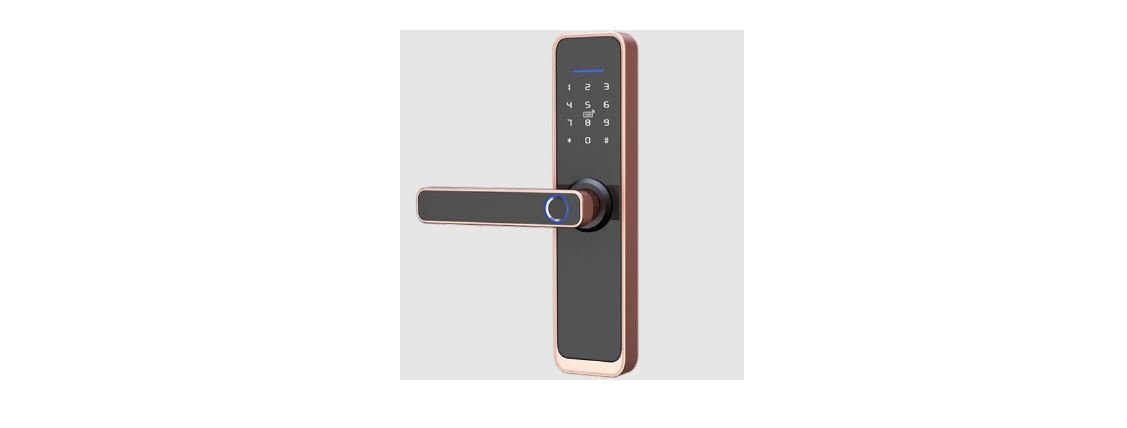
Locks Q106e Smart Lock
User Manual
Instructions to User
- Do not attempt to disassemble or repair the product without authorization.
- Do not press the keyboard and fingerprint recognition area with excessive force or sharp objects.
- Make sure the door is fully closed when going out. The manufacturer is not responsible for any loss caused by your improper door closing.
- Replace the battery when you hear the alarm of low battery.
- Change your password regularly to ensure security.
- Do not clean the device with corrosive substances to avoid damaging the protective layer and affecting the smooth surface of the device.
- Keep your fingers clean when unlocking with fingerprint.
- Please install inside the door or keep the door normally open to avoid being locked outside the door.
- Keep the mechanical key in a safe and secure place. The mechanical keys act as a backup, if your password.
- fingerprints or APP don’t work, they can prevent you from being locked outside the door.
Accessories package
Parts ListProduct Overview
Front ViewPreparations
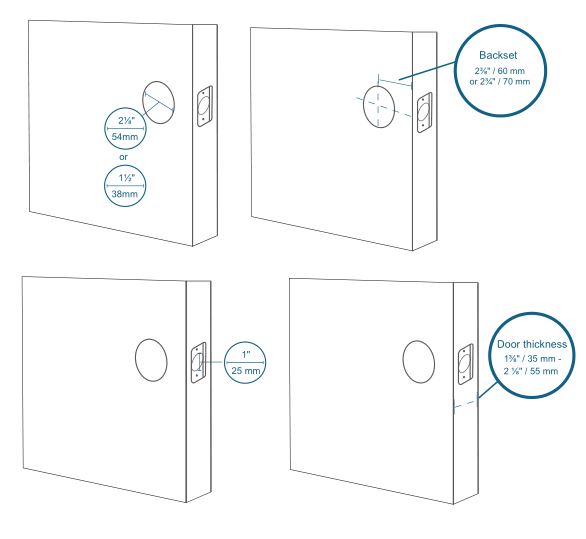
Door parameters and specifications- Make sure the lock can be installed correctly ① There are no obstacles in the door opening, ensure that the lock tongue can be extended and retracted normally. ② Compare the position of the hole in the door with the drill template.
- Door size
① Diameter of hole in the door (2 ” / 54 mm or 1½” / 38 mm).
② Distance between the hole center to the door edge (2 ” / 60 mm or 2¾” / 70 mm).
③ Door opening diameter (1” / 25 mm).
④ Door thickness (1 ” / 35 mm – 2 ” / 55 mm).
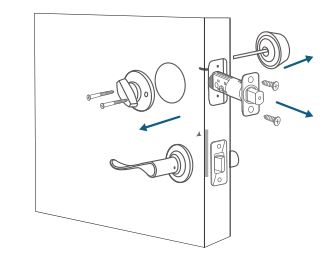
- If the door has been installed with a lock, remove it first, including the bolts.:
Install the smart lock
Install the deadbolt ① Measure the distance between the hole center to the door edge (2” / 60 mm or 2¾” / 70 mm). ② If the distance between the hole center to the door edge is 2” / 60 mm, please use the provided lock bolt for installation. If the distance between the hole center to the door edge is 2¾” / 70 mm, adjust the deadbolt to 70mm until the bolt locks into place.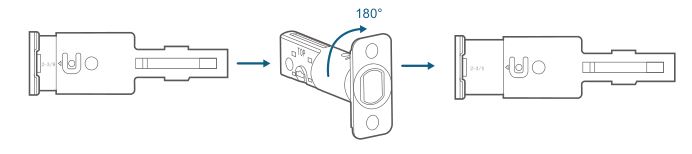
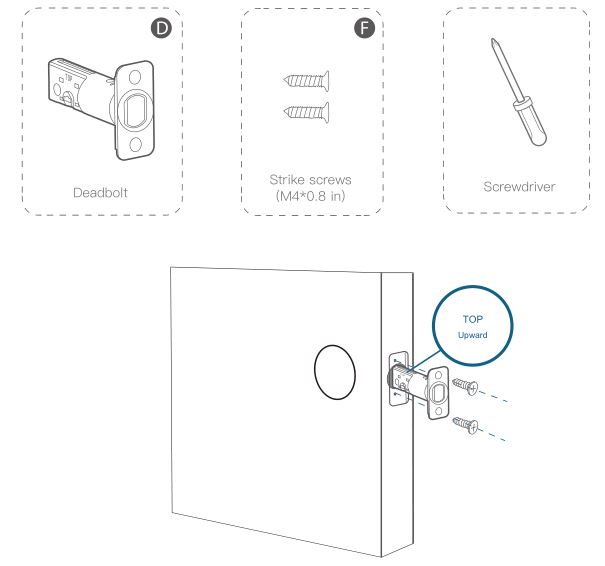 Install the strike plate
If it is confirmed that the bumper plate (strike plate) used by the lock bolt on the existing door frame can be extended and retracted smoothly, you can skip this step without installing the strike plate in the accessories package.
Install the strike plate
If it is confirmed that the bumper plate (strike plate) used by the lock bolt on the existing door frame can be extended and retracted smoothly, you can skip this step without installing the strike plate in the accessories package.
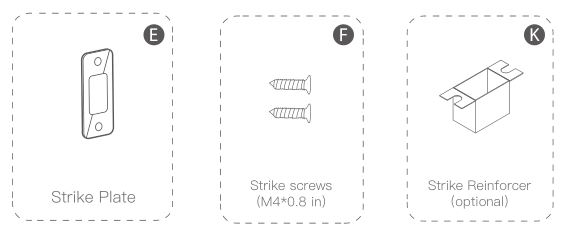
- Align the bumper plate (strike plate) and the strike plate buckle box with the center hole of the lock bolt.
- Put the strike plate buckle box into the door hole. Putting this accessory is for the sake of appearance and to avoid dust in the door hole being brought into the cylinder by the lock bolt, which will affect the life of the cylinder.
- The strike plate covers the buckle box, and the strike plate is fixed with screws. Make sure the strike plate is placed in the correct position and direction.
- Attach the black silicone pad to the mounting plate (it has been attached at the factory, please ignore this step).
- Pass the front lock wire through the hole in the mounting plate.
- Secure the mounting plate to the inner door frame with the mounting plate plate screws. Please confirm the door thickness, use the corresponding screws, cylinder fixing 1.8 inch screws(schematic diagram “J”) for door thickness of 35-45mm or cylinder fixing 2.2 inch screws (schematic diagram “J”) for door thickness of 35-55mm, make sure the screws pass through the holes of the lock bolt and the mounting plate, and lock them in place.
- In order to secure the lock to the door, please use additional auxiliary fixing screws (schematic diagram “I”), and drill according to the drilling diagram (if you do not want to drill holes to damage the smart lock, this step can be omitted).
- Pull to open the wiring port cover(②), pass the front lock wire through the rear lock, and insert the wire into the socket correctly.
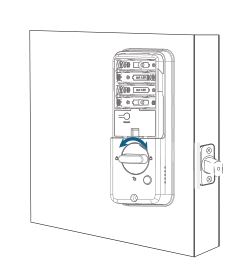
- It is necessary to ensure that the mechanical knob is in the vertical position and the cylinder is in the retracted state. Align the tail teeth of the cylinder with the cylinder hole on the rear panel and insert it correctly.
- Secure the rear lock to the mounting plate with screws.
- Turn the knob and check whether the lock bolt can retract. If it is unable to retract smoothly, adjust the screws or reinstall it again.
Smart lock local function
Calibrate Door Opening Direction- When the smart lock is used for the first time (in the initialization state), it is necessary to calibrate the door opening direction. After starting the lock, you will hear the voice prompt: “Please turn the knob to the horizontal position”, after setting successfully, you can start to use the smart lock. You can also press the Back key on the keyboard to exit, and set later.
Enter the local program to calibrate the smart lock.
- Calibrate the smart lock direction in the smart lock local menu program:
① Hold the Back key to verify the administrator password
② When you hear the voice prompt “Please press 5 to calibrate the smart lock direction”, choose to modify the user.
③ When you hear the voice prompt: “Press 1 for door opening to left, press 2 for door opening to right, choose the door opening direction.
④ Calibrate successfully.
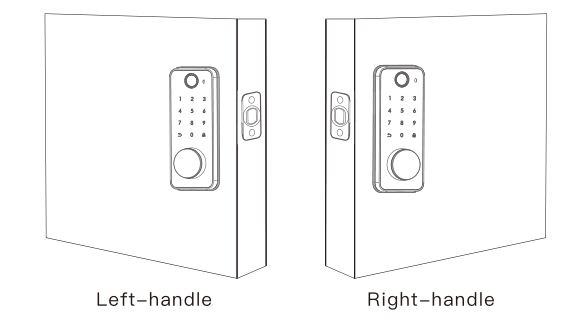 Note:
It will cause the lock bolt to be abnormal and the smart lock cannot be used correctly if the door opening direction is not calibrated. Please calibrate the door opening direction.
Note:
It will cause the lock bolt to be abnormal and the smart lock cannot be used correctly if the door opening direction is not calibrated. Please calibrate the door opening direction.
- Before add local administrator, the smart lock will be in the initialization state, and it can be opened with any fingerprint or password”123456″.
- Only one administrator for each smart lock, it must be 6-8 digitals passcode.
- Operation as below:
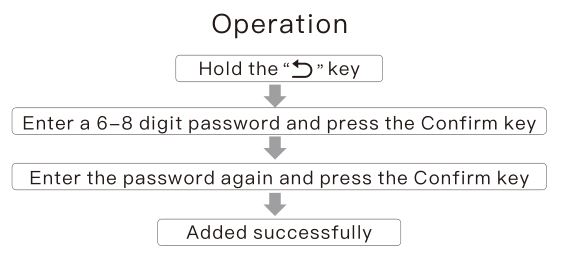
- Hold the Back key to verify the administrator password.
- When you hear the voice prompt “Please press 1 to add user”, please press 1 to add user.
- When you hear the voice prompt: “Please press 1 to enter the password”, please press 1 to enter password.
- Enter a 6-8-digit password, press the Confirm button to end, and enter it again, the password is added successfully.
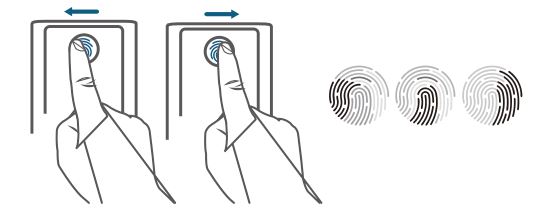
- Hold the Back key to verify the administrator password.
- When you hear the voice prompt “Please press 1 to add user”, please press 1 to add user.
- When you hear the voice prompt: “Please press 2 to enter fingerprint”, please press 2 to enter fingerprint.
- Repeatedly enter the fingerprint 6 times, the fingerprint is added successfully.
- Hold the Back key to verify the administrator password.
- When you hear the voice prompt “Press 1 to delete a user”, please press 1 to delete a user.
- When you hear the voice prompt: “Please press 1 to delete all user passwords, please press 2 to delete all user fingerprints, and please press 3 to delete all users”. ① Select the key you want to delete, and the operation is successful after hearing the prompt. ⑤ Delete user successfully.
- It can only modify the ordinary user password, the administrator password cannot be modified.
- Modify the password in the smart lock local menu program: ① Hold the Back key to verify the administrator password. ② When you hear the voice prompt “Please press 1 to modify the user”, please press 1 to modify the user. ③ When you hear the voice prompt: “Please enter the original password”, enter the original password and press the Confirm key When you hear the voice prompt: “Please enter a new password”, please enter the new password and press the Confirm key. ⑤ When you hear the voice prompt: “Please enter the new password again”, please enter the new password and press the Confirm button. ⑥ Password is changed successfully.
- Perform toggle volume of the smart lock in the local menu program. Hold the Back key to verify the administrator password. When you hear the voice prompt “Press 6 to toggle the volume”, please press 6 to toggle the volume. When you hear the voice prompt: “Press 1 for high tone, press 2 for medium tone, press 3 for low tone, press 4 for mute”, please select the volume accordingly.
- After downloading the APP, please register an account to use the APP.



- When pair the smart lock with your mobile phone, please be near the smart lock to avoid pairing failure.
- When pairing the smart lock, please keep the smart lock in networking mode. ① Open the APP, select “Add Device”, the APP will automatically search for the smart lock in the networking mode. ② Press the 3+Confirm key on the smart lock to verify the administrator and enter the networking mode, and when you hear the smart lock voice prompt: “Please bind the smart lock with mobile phone”, it means that the smart lock has entered the networking mode. Or enter the networking mode from the local menu. ③ Select the searched smart lock. ④ When you hear the voice prompt: “Add successfully”, that is, the mobile phone and the smart lock have been successfully paired.
The administrator is the person who is originally registered in the smart lock. The administrator can control all settings and functions of the smart lock. Ordinary users can only unlock through fingerprints, passwords or APP, and cannot set the smart lock.
After powering through the emergency charging port (5V-1A) under the front lock, enter the registered password or fingerprint to unlock, or directly unlock with the mechanical key.
You can log in to the Tuya APP to change the administrator password in the Password Management, or briefly describe the problem and send it to our official E-mail support@fingercrystal.com.
It may be affected by various factors such as obstacles to unlock with the APP. It is recommended to keep the phone as close to the door as possible, or at least within 16 feet. Shenzhen Fingerchip Intelligent Technology Co., Ltd.Room 406-407, Research Building, Tsinghua Hi-Tech Port, Nanshan District, Shenzhen.
 This device complies with Part 15 of the FCC Rules. Operation is subject to the following two conditions: (1) this device may not cause harmful interference, and (2) this device must accept any interference received, including interference that may cause undesired operation.
Changes or modifications to this unit not expressly approved by the party responsible for compliance could void the user’s authority to operate the equipment.
NOTE: This equipment has been tested and found to comply with the limits for a Class B digital device, pursuant to Part 15 of the FCC Rules. These limits are designed to provide reasonable protection against harmful interference in a residential installation. This equipment generates, uses and can radiate radio frequency energy and, if not installed and used in accordance with the instructions, may cause harmful interference to radio communications. However, there is no guarantee that interference will not occur in a particular installation. If this equipment does cause harmful interference to radio or television reception, which can be determined by turning the equipment off and on, the user is encouraged to try to correct the interference by one or more of the following measures:
— Reorient or relocate the receiving antenna.
— Increase the separation between the equipment and receiver.
— Connect the equipment into an outlet on a circuit different from that to which the receiver is connected.
— Consult the dealer or an experienced radio/TV technician for help.
This device and its antenna(s) must not be co-located or operation in conjunction with any other antenna or transmitter.
Radiation Exposure Statement
To maintain compliance with FCC’s RF Exposure guidelines, This equipment should be installed and operated with minimum distance of 20cm from your body.
This device complies with Part 15 of the FCC Rules. Operation is subject to the following two conditions: (1) this device may not cause harmful interference, and (2) this device must accept any interference received, including interference that may cause undesired operation.
Changes or modifications to this unit not expressly approved by the party responsible for compliance could void the user’s authority to operate the equipment.
NOTE: This equipment has been tested and found to comply with the limits for a Class B digital device, pursuant to Part 15 of the FCC Rules. These limits are designed to provide reasonable protection against harmful interference in a residential installation. This equipment generates, uses and can radiate radio frequency energy and, if not installed and used in accordance with the instructions, may cause harmful interference to radio communications. However, there is no guarantee that interference will not occur in a particular installation. If this equipment does cause harmful interference to radio or television reception, which can be determined by turning the equipment off and on, the user is encouraged to try to correct the interference by one or more of the following measures:
— Reorient or relocate the receiving antenna.
— Increase the separation between the equipment and receiver.
— Connect the equipment into an outlet on a circuit different from that to which the receiver is connected.
— Consult the dealer or an experienced radio/TV technician for help.
This device and its antenna(s) must not be co-located or operation in conjunction with any other antenna or transmitter.
Radiation Exposure Statement
To maintain compliance with FCC’s RF Exposure guidelines, This equipment should be installed and operated with minimum distance of 20cm from your body.